St. Thomas E-Learning And Research - The Intersection of Technology and Pedagogy - Page 14
Accessibility, Best Practices, Tips, and Tricks

Accessibility: Why is it important, and how do I start?

What would you do if half of the internet were inaccessible to you? Can you even begin to imagine the frustration and exasperation you would feel every time you came across something you couldn’t read, couldn’t hear, couldn’t access?

Student Stephanie Garcia studies in Owens Science Hall.

That’s the reality for the 56.7 million Americans who live with disabilities. While awareness around creating accessible web pages and materials is growing, we still have a lot of work to do before the internet (and on a larger scale, our society) can be considered truly inclusive. It makes me wonder… What can I do as an Instructional Designer in the STELAR Center to be more proactive when it comes to accessibility? What can we all do? It turns out there are a variety of things each of us can do to make our materials more accessible, and it takes less time than one might think!

In an effort to be more informed about how I can make more inclusive courses and online materials through my work at the University of St. Thomas, I recently completed an online training on Designing 508 Compliant Programs and Materials.  It was a great opportunity to learn more about the many things we should keep in mind as we design courses and materials to ensure that they will be accessible to everyone. One of my biggest takeaways from this training was the importance of being proactive. It is so much easier to design with accessibility in mind from the beginning than it is to try and retroactively make a course, document, or other material accessible when it wasn’t originally designed to be so.

Now, you may think to yourself, “No one in my target audience has an accommodation need, so I don’t need to worry about it.” I’ll pose a question to you. How certain are you that absolutely no one  in your target audience has an accommodation need? There are many people with disabilities who don’t tell others about it because of the stigma and shame that surrounds disabilities. Also, even if our intended audience doesn’t include someone with an accommodation need right now, there could easily be someone with an accommodation need in the future. It would make everything much easier if we made our materials accessible from the get-go rather than trying to scramble at the last minute.

What’s more, even if someone doesn’t necessarily have an accommodation need, that doesn’t mean some members of your target audience may not prefer to use accessible materials for one reason or another. I’ll give you an example.

Here’s a trailer for the movie Frozen  that came out a few years back. (I know I know, it’s a bit off the beaten path, but I figure some of you may have heard of it!)

Now, here’s the same trailer with audio descriptions.

Personally, I really enjoyed the audio descriptions! I know I definitely chuckled at the line, “The snowman puts himself back together again and glumly contemplates his nose-less state.” I understand that some may find the audio descriptions distracting and may prefer the video without them for one reason or another, but I hope this example showed you that, even among those without  disabilities, we all have different preferences about how we like to consume information.

And that leads me to my other big takeaway from this training: Designing accessible courses and materials doesn’t only benefit those with disabilities. We all  have the potential to benefit from inclusive materials. It makes me think of the doors that use motion sensors to automatically slide open. Those doors were originally designed for people who have trouble opening a traditional door, but we all benefit from the automatic doors. Who doesn’t love walking up to a door and having it automatically open? If we can appreciate inclusivity with something as simple as doors, think of how much more we’ll appreciate inclusivity on the web!

So, what immediate steps can we all take to start creating accessible materials? Luckily, the Center for Faculty Development has curated a wonderful collection of resources where we can learn more about what we can do starting right… now!

Visit the Center for Faculty Development’s Accessibility page to learn about a variety of surprisingly simple ways to make materials more accessible.

This post was written by Karin Brown, an Instructional Designer for the St. Thomas E-Learning and Research (STELAR) Center at the University of St. Thomas in St. Paul, Minn. To learn more about this topic, please visit our website at www.stthomas.edu/stelar or email us at stelar@stthomas.edu.
Paleofuturism

Paleofuturism: Everything old is new again

Ever since I was a really little kid, I’ve loved to dig out old books and magazines with “predictions of the future” and enjoy how quaintly incorrect they were. In recent years I learned that I wasn’t alone in this quirky pastime, which has been dubbed “paleofuturism.”  Part of my interest lies in the belief that “failed futurism” can give us a valuable opportunity:  Like the proverbial (and discredited) frog in slowly-heated water who doesn’t realize he’s boiling, we’re now living in the future once dreamed of, yet we might not see the opportunities we have because we’ve become slowly acclimated to them.

I hope this will become a regular series here, which is a fairly easy challenge to give myself because there’s so much of the past for me to draw from.  For starters, I reexamined an article from 30 years ago (June, 1988) by Fred D’Ignazio in COMPUTE’s Gazette magazine — a magazine for Commodore users.  (As an aside, I still haven’t gotten the flying car that I was promised by the year 2000, but I assumed I’d grow up to do 8-bit Commodore support and don’t spend much time astonished that we now walk around with magic pieces of glass in our pockets that can connect us instantly to any piece of content anywhere on the planet.)

D’ignazio joked about terminology that we now find commonplace:

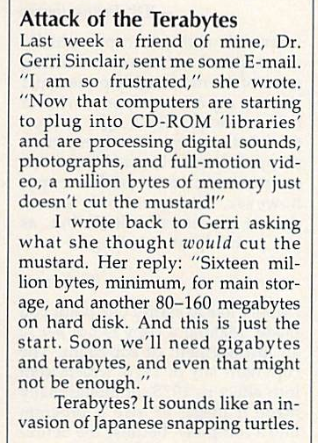
Attack of the Terabytes: Last week a friend of mine, Dr. Gerri Sinclair, sent me some E-Mail. "I am so frustrated," she wrote. "Now that computers are starting to plug into CD-ROM 'libraries' and are processing digital sounds, photographs, and full-motion video, a million bytes of memory just doesn't cut the mustard!" I wrote back to Gerri asking what she thought would cut the mustard. Her reply: "Sixteen million bytes, minimum, for main storage, and another 80-160 megabytes on hard disk. And this is just the start. Soon we'll need gigabytes and terabytes, and even that might not be eno0ugh." Terabytes? It sounds like an invasion of Japanese snapping turtles.

Today, a terabyte is still a lot… but you can walk into any retailer and buy a 4TB hard drive for the cost of a nice dinner out.  When I read this reference in 1988, I couldn’t fathom that much data.  Now I have it in my basement.

Later, after lamenting that computers make us more busy rather than less (still true!), D’ignazio offered a whimsical dream of a program:

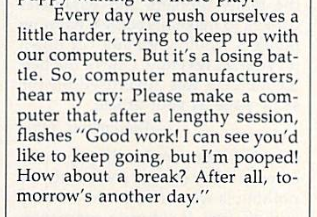
Every day we push ourselves a little harder, trying to keep up with our computers. But it's a losing battle. So, computer manufacturers, hear my cry: Please make a computer that, after a lengthy session, flashes, "Good work! I can see you'd like to keep going, but I’m pooped! How about a break? After all, tomorrow's another day."

It took a couple dozen years, but computer manufacturers did hear D’ignazio’s cry.   The notion of wasting precious computing power on a timer was absurd in 1988, when “multitasking” was a technical term for a computer switching between two programs (and that was an impressive feat).  Those of us who wanted a break from our technology (though… really, who would want to take a break from something so fun?) had one alternative:

Lux brand "Minute Minder" mechanical kitchen timer
Today, there are dozens of programs and phone apps — remember that magic piece of glass in your pocket? — that do exactly what D’ignazio hoped.

Whether we use them? That’s a different question…

This post was written by Eric M. Larson, an Instructional Systems Consultant in the St. Thomas E-Learning and Research (STELAR) Center at the University of St. Thomas in St. Paul, Minn. Eager to reminisce about classic computing? Stop down at STELAR in the lower level of the OSF Library, where you’ll find yourself among friends, or email us at stelar@stthomas.edu.

Future of Higher Education

Rethinking Learning and Teaching in the Digital Age

Web Page Banner from TeachOnline.CA

This is an article from TeachOnline.ca that discusses 10 key developments that are changing the dynamics of universities and colleges. A very interesting read, and it aligns with some of conversations STELAR has been having across the St. Thomas community.

https://bit.ly/2qkOdiS

This post was written by Peter Weinhold, Director of Academic Technology,for the St. Thomas E-Learning and Research (STELAR) Center at the University of St. Thomas in St. Paul, Minn. To learn more about this topic, please visit our website at www.stthomas.edu/stelar or email us at stelar@stthomas.edu.

Best Practices, Tips, and Tricks

Enhance Your Online Discussions

As an Instructional Designer, I work with faculty from many different departments and colleges to develop online and blended courses. One comment I’ve heard from almost every professor I’ve worked with is that they don’t find online asynchronous discussions to be as robust as the discussions they have in their face-to-face classes. Given the fact that I recently attended the Online Learning Consortium (OLC) Conference in Nashville and went to a session about improving online discussions, I figured now was the perfect time to share some tips and tricks on how to make online discussions more effective. And who knows? If you incorporate some of the tips below, you might be pleasantly surprised at the well-thought-out and insightful responses you see from students!

Black woman with natural hair in a peach-colored shirt looking at a laptop with a stack of books nearby.

I’ll start by talking about best practices for writing effective discussion prompts. Questions or prompts that only have one right answer don’t typically lend themselves well to discussion. We wouldn’t ask a one-right-answer/closed-ended question to facilitate an in-person class discussion, so it doesn’t make much sense to do it for online discussions either. Try to come up with prompts that require students to take a stance, to argue a point, to ask a question, or to do something other than state the same answer as all of their classmates. If you feel like you’re stuck, don’t worry! I’ve laid out several different options below that will help get the creative juices flowing.

Four A’s Protocol

The first option I’ll talk about is the Four A’s Protocol. This option is great if you want your students to discuss something they’ve read or watched. The Four A’s represent four questions:

  • What Assumptions does the author/creator hold?
  • What do you Agree with?
  • What point(s) do you want to Argue about?
  • Which parts do you want to Aspire to or Act upon?

These questions guide students to think about a text or video more critically and also require them to take a stance on all or some of the points presented. Students will be more inclined to check in to the discussion and see what their peers are saying because they know that not everyone will be saying the same thing, which typically generates interest and livens up the discussion.

“Save the Last Word for Me” Protocol

The next option I’ll talk about is the “Save the Last Word for Me” Protocol. This one also works well if students will be responding to something they’ve read or watched. The general premise is that students pick out three sentences or points that resonated with them in the reading or video and post them in the discussion. In the back of their mind or elsewhere on their computers, they should have a few sentences ready that will explain why those sentences/points stuck out to them. Why were they meaningful or memorable? How do they fit into students’ existing knowledge? Then, two other students respond to the original post, talking about what they think the sentence means, why the point was important to the overall message, etc. Once two students have responded, the original student posts their rationale for choosing the sentences or points.

This is another great opportunity for students to think critically about a reading or a video. Why would someone have chosen those points? How do those snippets fit into the articles or video as a whole? It also allows students to practice active listening and consider other points of view, since they don’t share their original rationale until two other students have responded.

Charrette Protocol

Another option for online discussions is the Charrette Protocol. This one works well if students are working on individual or group projects and you want them to critique and give feedback on someone else’s project.

Young hispanic man in a light green jacket is typing on a laptop.

This is typically done early on in the project timeline and not after it’s been completed, since the purpose is to improve the final product before there has been a lot of time and effort invested.

The discussion works by having the team or individual give an informal presentation on their project, including particular questions or concerns they’d like the reviewers to consider. Then, the reviewers take some time to think things over before giving feedback to the project owner(s). Once the project is over, it’s beneficial to debrief and talk about what changes were made based on the reviewers’ feedback and how it impacted the project development process.

Case Studies

Case studies are another great option for online discussions. I especially like them because they typically have many different paths to choose from instead of one “right” answer or solution. This often encourages students to check in to the discussion more often because they’re interested to see what their peers would have chosen to do, and the variety of responses also gives them the opportunity to consider other points of view.

Ask the Right Questions

This article will give you more tips and tricks on how to ask the right questions and craft more effective discussion prompts.

Expectations

The final thing I’ll talk about is setting clear expectations for students so they know what constitutes a high quality post or comment and what doesn’t. I recommend a two-pronged approach that includes a rubric and samples of high-quality vs. low-quality discussion posts so students have concrete examples to refer back to. I’ve created an example rubric that anyone is free to copy and/or build upon for their own classes. This document also includes links to high-quality vs. low-quality discussion posts that anyone can share with their students.

It is my hope that the tips and tricks shared in this blog post will enhance your online discussions, leading to better learning for your students. With careful forethought and planning about writing effective prompts and laying out clear expectations for students, you might be pleasantly surprised at the critical thinking you see from your students in online discussions!

This post was written by Karin Brown, an Instructional Designer for the St. Thomas E-Learning and Research (STELAR) Center at the University of St. Thomas in St. Paul, Minn. To learn more about this topic, please visit our website at www.stthomas.edu/stelar or email us at stelar@stthomas.edu.

Technology Tools

Using VoiceThread to Enhance Instruction for All Learners

Many faculty at the University of St. Thomas are already using VoiceThread as a way to actively engage learners and promote social presence in their online classes.

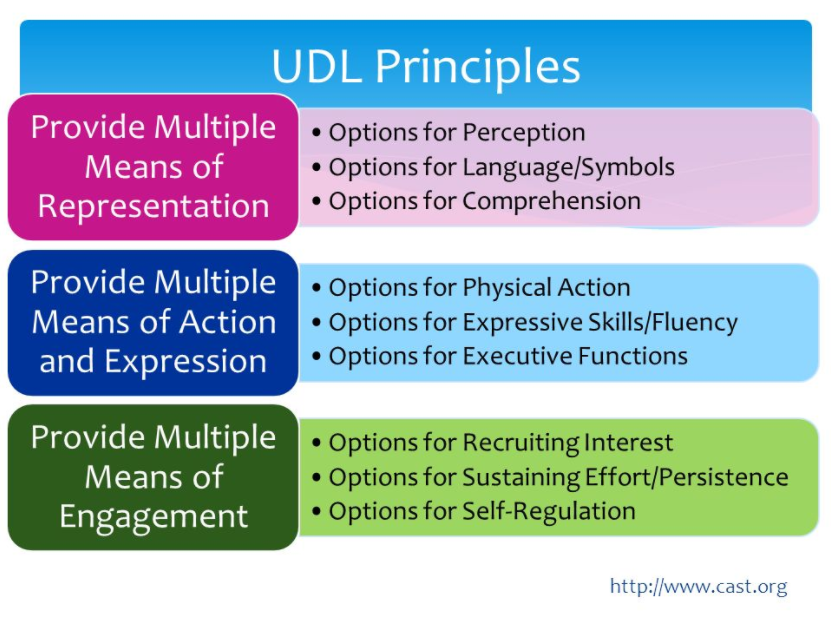
VoiceThread is a tool that allows students and instructors to use their voice and video as a part of  asynchronous discussions and presentations. From the ground up, the philosophy behind the VoiceThread technology has been to enhance the online UX (user experience) for all learners. To accomplish this, VoiceThread goes beyond the requirements for making things accessible under the American Disabilities Act. VoiceThread also does a really good job at targeting the principles of UDL Universal Design for Learning (UDL). DesigninUDL Principlesg online experiences with the lens of UDL, using a tool like VoiceThread, is a better way to plan for accessibility because it’s a holistic approach that supports all learners.

I recently attended a VoiceThread training on UDL and was amazed at how the tool’s features and functions address the major principles of UDL. If you’re not familiar with VoiceThread’s capabilities, I invite you to explore more at VoiceThread.com.

First, and most obvious, VoiceThread supports “Multiple Means of Expression” because participants can choose to write text comments or leave voice comments with a microphone, or video comments with a web camera. This make it a great tool for language learners. Instructors can see and hear how pronunciations are formed.  One example showed students interacting around a topic using ASL (American Sign Language).

Second, VoiceThread supports “Multiple means of Representation” because instructors can display information through images, Word docs, PDFs, or PowerPoint.  They can use the built-in annotation tools to highlight and call out certain information or focus the learner’s attention. In addition, each VoiceThread participant can choose  to display menus and tools in their own language.

The third way VoiceThread supports UDL is through “Multiple Means of Engagement.” Instructors can have students simply view a presentation (passive), post comments on any part of the presentation (more active). Or, they can have students create their own VoiceThread (highest level of engagement) and share it with others. It’s a great way to encourage student-led presentations in an online setting. Students can narrate their presentation and have other participants provide feedback.

Of course, for learners that have specific accessibility needs, VoiceThread does have features that are specially designed to meet their needs too.  This includes VoiceThread Universal, a specific app that helps vision impaired students; the ability to close-caption audio comments to assist with auditory needs; and VoiceThread Mobile, increasing access to all learners regardless of the platform and giving the option for ‘anywhere-anytime’ access.

While the folks at VoiceThread have specific solutions for accessibility, the VoiceThread philosophy grew over time to recognize that everyone deserves better access and a user experience that promotes learning instead of getting in the way of it. This philosophy is highlighted in an article for FLTMAG, the free magazine on technology integration in language teaching and learning. Read about the VoiceThread journey and how they moved away from a ‘check-list’ approach to meeting specific accessibility issues and more toward a human-centric view of how they design a robust user experience for all learners.

This post was written by Michael Wilder, an Instructional Designer for the St. Thomas E-Learning and Research (STELAR) Center at the University of St. Thomas in St. Paul, Minn.
To learn more about this topic, please visit our website at www.stthomas.edu/stelar or email us at stelar@stthomas.edu.