Best Practices, Tips, and Tricks – St. Thomas E-Learning And Research - Page 5
Browsing Category

Best Practices, Tips, and Tricks

Best Practices, Tips, and Tricks

8-Point Canvas Tune-up

Avoid common pitfalls and make your course easier to navigate with this 8-Point Canvas Tune-up.

Hide unused buttons 

Eliminate confusion and streamline the students’ experience by hiding any unused left-navigation buttons. You can also reorder the items in the left navigation to suit your needs.

Post your Syllabus in Syllabus 

In the Fall 2018 semester, more than 80% of St. Thomas students clicked on Syllabus in Canvas, expecting to find their course Syllabus. Make finding your Syllabus easy for students by posting your syllabus in Syllabus (found in the left navigation). You can upload a Word document or PDF or copy/paste the text directly into the page’s rich content editor.

Organize your course chronologically in Modules 

Organizing your course chronologically in Modules creates a natural progression through course materials and activities each week and eases navigation. It also helps students manage their workload because the modules contain everything they need—an overview page to provide context, a list of assigned readings, videos, or links, and assignments.

Stream course videos through Panopto 

Uploading or recording new videos in Panopto (St. Thomas’ video streaming and management system) gives you the ability to embed/link that video directly in Canvas, so students won’t need to download the video to view it, and you won’t need to worry about running out of space with large video files.

Send course updates via Announcements 

The best way to send a message to the whole class is to post an Announcement. Doing so triggers email, Canvas app, and text notifications (depending on how students set up their notifications) that tell students a new announcement exists. All announcements are also saved in the Announcements tool for future reference.

Turn files into Pages

Using Canvas Pages instead of files makes your content easily accessible on any device or operating system. Instead of presenting a series of files (handouts, documents, and PDFs) to students, you can use Canvas Pages to present the same information. The power of Pages is that you can present short instructions, long articles, hyperlink to websites, as well as link to multiple documents, all on a single page. You can also increase the visual appeal of your content with page headings, images, color, and much more.

Publish, publish, publish 

Courses, by default, are not published until you publish them. For students to see your course content, you must publish the course, the modules, and the items. Use Student View to make sure that the content you choose to share with students is available. (The Syllabus is automatically available as soon as the course is published.)

Check your dates 

Check your start and end dates in Settings to make sure your course is scheduled to open and close when you want. Remember, students won’t have access to the course (even if it is published) until the start date occurs. Also make sure the dates in your Syllabus match the dates built into your modules, assignment descriptions, Canvas calendar, and announcements. This will reduce questions and confusion from students, so you can keep their focus on learning.

This post was a collaborative effort among St. Thomas E-Learning and Research (STELAR) Center staff at the University of St. Thomas in St. Paul, Minn. To learn more about this topic, please visit our website at www.stthomas.edu/stelar or email us at stelar@stthomas.edu.

Best Practices, Tips, and Tricks

Universal Design for Learning Recap

Last summer, Faculty Development hosted a Summer Seminar on Universal Design for Learning, or UDL. One of STELAR’s Instructional Designers, Karin Brown, presented on the Multiple Means of Action and Expression component of UDL and wrote a recap for Faculty Development’s Synergia newsletter. Click to read Karin’s article, “Using Principles from Universal Design for Learning to Create Opportunities for Student Choice.”

This post was written by Karin Brown, an Instructional Designer for the St. Thomas E-Learning and Research (STELAR) Center at the University of St. Thomas in St. Paul, Minn. To learn more about this topic, please visit our website at www.stthomas.edu/stelar or email us at stelar@stthomas.edu.

Best Practices, Tips, and Tricks, Canvas: Did you know...?

What’s All the Hype About Modules?

Since the university moved from Blackboard to Canvas, we’ve heard a lot about Modules: “Build your content in modules; don’t forget to publish your modules; I never had to use modules in Blackboard, they’re too confusing.”  So, what’s all the hype about modules anyway?

True, Blackboard didn’t use modules. That’s one of the main paradigm shifts we encounter when moving to Canvas. Instead of creating menu items and folders as you did in Blackboard, Canvas has you assemble and display content items in Modules. But once we wrap our heads around the modules concept, we can see they’re pretty powerful.

To better understand the idea behind modules, picture a scrumptious spread of holiday food set out on the dining table. The items on the table really come from other locations: the kitchen, the cupboard, the refrigerator, or pantry; but they are assembled and displayed on the table for the benefit and consumption of our guests.  So it is with Modules. Content items like files, assignments, discussions, and pages really live elsewhere in the course site, but we intentionally assemble and display them in modules so there’s a logical sequence that walks the student through the learning process.

One of the powerful features behind modules is that you can set requirements for viewing or completing the items inside a module, or specify the sequence in which they will be completed. By setting module requirements, you can release individual items based on certain criteria met on previous items. You can also control the visibility of module items or an entire module through the Publishing function.

Modules really help us assemble content in logical, sequential ways, allowing us to display various content pieces, whether it be an assignment, a page of instructions, a file, and so on. The flexibility and capability of modules make them a great feature in the Canvas learning management system.

For more information on the power of modules, check out these guides and videos.


This post was written by Michael Wilder, an Instructional Designer for the St. Thomas E-Learning and Research (STELAR) Center at the University of St. Thomas in St. Paul, Minn. To learn more about this topic, please visit our website at www.stthomas.edu/stelar or email us at stelar@stthomas.edu.
Accessibility, Best Practices, Tips, and Tricks

Finding Captioned Videos on YouTube

Captioned videos are helpful for all students and they help us meet ADA accessibility guidelines. Your students will appreciate videos with captions when they’re in a quiet place and forgot their headphones, watching in noisy public places, or have trouble understanding the speaker.

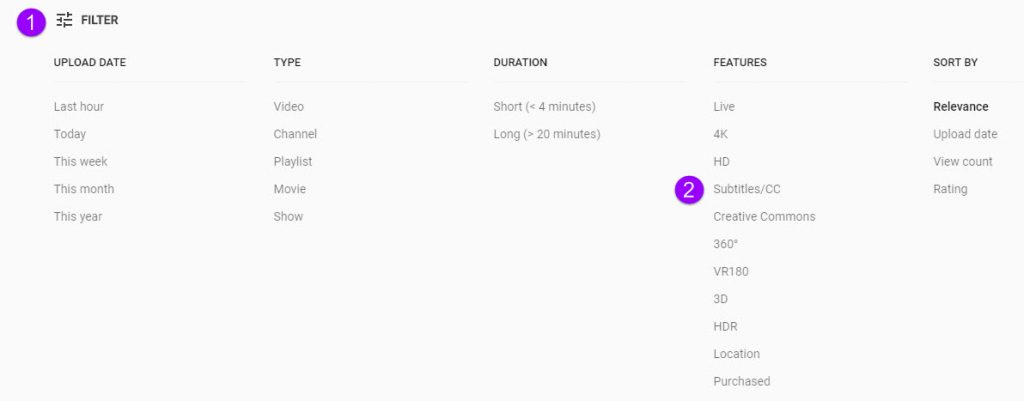
You can filter your YouTube searches so you only review captioned videos. Here’s how:

  1. Go to YouTube and type your search terms. Click the search button.
  2. When your search is completed, click the Filter button (1), then click Subtitles/CC (2).

Click Filter, then Subtitles/CC

Now your search results will only show videos that are already captioned. Please note, just because a video is captioned does not mean it is captioned accurately. You should still check to make sure the captions are well done.

And don’t forget that we have a huge amount of licensed media resources available through the library system.

This post was written by Nancy McGinley Myers, an Instructional Designer for the St. Thomas E-Learning and Research (STELAR) Center at the University of St. Thomas in St. Paul, Minn. To learn more about this topic, please visit our website at www.stthomas.edu/stelar or email us at stelar@stthomas.edu.

Best Practices, Tips, and Tricks

The ANSWER is right at your fingertips: Reflections on Faculty Focus article

Article citation:

Yee, Kevin and Boyd, Diane. How Can We Amplify Student Learning? The ANSWER from Cognitive Psychology:
Faculty Focus. June 18, 2018. <
https://bit.ly/2lflsSO> (18 June 2018).


Fall semester is right around the corner.  How do you know your students are going to learn something this term?  Well, it’s obvious that they will learn this semester. Learning is like breathing. It comes naturally. However, by keeping in mind some principles suggested by cognitive psychologists, you can actually AMPLIFY your student’s learning.

The article: How Can We Amplify Student Learning? The ANSWER from Cognitive Psychology from Faculty Focus is a well-researched, yet simple reminder of how people learn.  De-emphasizing “learning styles” as the way we learn, the authors say it’s more about the science of learning based on extensive research in cognitive psychology.

The authors, Kevin Yee and Diane Boyd, present a simple acronym that’s easy to remember as a way to classify the elements necessary for cognitive change (i.e. learning) to take place: A.N.S.W.E.R. You’ll want to skim the article yourself to find out how each of these elements is defined along with appropriate examples.

A-attention

N-novelty

S-spacing

W-why

E-emotions

R-repetition

Granted, there are likely many other factors that contribute to deep learning, and it would be short-sighted to limit our student’s growth and progress by only these six areas. However, synthesizing powerful principles like the ones from Yee and Boyd into easy-to-remember nuggets of information can be extremely helpful in explaining what needs to be present for learning to stick.

In my work as an instructional designer with STLEAR, I often consult with faculty who are trying hard to emphasize to their students the importance of learning their subject matter. At the same time, I find myself trying hard to emphasize the importance of good course design so that we can reach the same goal – deeper student learning!  This is what it means to design with students in mind. Considering what students need for learning to take place is actually in the ANSWER.


This post was written by Michael Wilder, an Instructional Designer for the St. Thomas E-Learning and Research (STELAR) Center at the University of St. Thomas in St. Paul, Minn. To learn more about this topic, please visit our website at www.stthomas.edu/stelar or email us at stelar@stthomas.edu.